Key takeaways
- Separate time records, planned locations and work results.
- Check what is collected, shared and corrected in each product.
- Compare the workflow and current plan, not historical prices or scores.
Start with the decision, then choose the data

“Remote tracking” can mean recording hours against a project, understanding personal focus or knowing which colleagues plan to come to the office. Those questions call for different tools. Start with the decision you need to make and the information required, rather than collecting every signal a product offers.
This guide revisits the ten names in our original selection using official product pages checked on 27 September 2026. FLYDESK publishes the guide and is included below. It is a sourced overview, not an independent hands-on ranking. Confirm the current plan, configuration and integration scope with each vendor; the old prices and review scores are not carried forward.
Separate time, working location and results
A timesheet records a duration assigned to work. A hybrid schedule records a planned working location. Neither, by itself, establishes the quality of a deliverable. Application activity adds another signal, but a quiet period on a computer might involve reading, a conversation or work away from the screen.
Agree what information will be collected, who can see it and how corrections are made. Keep the purpose understandable to the people using the system. For performance discussions, combine relevant evidence with expectations and context, as explained in our guide to presence-based and output-based management.
Three questions. Three kinds of evidence.
- How much time?
A reviewed time entry describes duration assigned to an activity.
- Where will we meet?
A working-location plan and booking help coordinate people and space.
- What was achieved?
An agreed deliverable and its quality need their own review.
1. FLYDESK: coordinate working locations and shared resources
FLYDESK supports hybrid work planning, visibility of colleagues and desk booking. It is relevant when the question is when people intend to be on site and which shared resources they need. Examine those workflows in the application overview.
For a demonstration, plan an office day, find colleagues and reserve a suitable resource, then change the plan. A declared location or a booking is not evidence of hours worked or individual performance. This guide does not attribute automatic desktop monitoring, client timesheets or a global coworking marketplace to the current FLYDESK product.
2. Toggl: connect recorded time with project planning
Toggl's current site presents time tracking alongside capacity and project planning, with reports by project, client and team. It explicitly distinguishes its approach from screen, keystroke and webcam monitoring. The former Track address now leads to the main Toggl site.
Test how a person enters and corrects time, how estimates relate to recorded work, and which reports the relevant plan provides. Use a representative project rather than assuming every planning capability is included in the same subscription.
3. Clockify: compare timers, timesheets and reporting
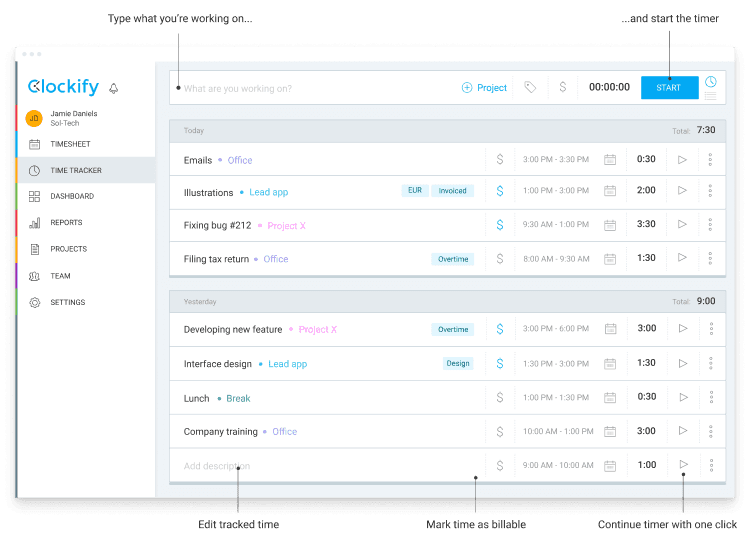
Clockify describes timers, weekly timesheets, a calendar, reports and additional administration features. Its current feature list also includes automatic tracking of applications and websites. Choose the collection method that matches the purpose instead of treating every option as necessary.
The archived illustration shows the principle of assigning time to an activity, not today's interface or subscription. During a trial, check corrections, project categories and the view available to employees and managers.
4. Time Doctor: examine collection and visibility settings
Time Doctor presents time and activity records for distributed teams, with verification features including screenshots. Its site describes controls by role and access for employees to their own records.
Ask the vendor to demonstrate exactly what your proposed configuration captures, when collection starts and stops, and who can inspect the result. Review those choices with the people responsible for workplace data before a rollout. A captured activity record should not be treated as a complete account of someone's contribution.
5. RescueTime: distinguish Focus from Timesheets
RescueTime separates Focus, which covers habits, goals and distraction blocking, from Timesheets for project and client time records. This distinction matters when the original need is personal concentration rather than client reporting.
Decide which product and individual or team use case you are evaluating. Test the information visible to the user and any information shared with others, then confirm how a mistaken classification can be corrected.
6. Timely: review automatically prepared time entries
Timely describes automatic capture and allocation of time, followed by user approval through its AutoSheet workflow. Its current site is timely.com, replacing the historical memory.ai/timely link used in this article.
Use a sample day to check what remains private, what is proposed for a project and what becomes a shared time entry. Include a misclassified activity in the demonstration so the correction and approval steps are visible.
7. My Hours: follow time from entry to review
My Hours presents time recording by stopwatch or spreadsheet-style entry, project and task organisation, timesheet review and reporting. Its published workflow also covers budgets and client invoices.
Try a small project with both billable and non-billable activities. Check who reviews the entries, how changes work after approval and which export the receiving team needs. Confirm the relevant features in the proposed plan.
8. Hubstaff: inspect optional monitoring separately
Hubstaff combines time tracking with activity and productivity reporting. Its site identifies configurable activity rates, application and URL tracking, and optional screenshots. These are distinct collection choices, not a single unavoidable package.
Demonstrate the exact employee view and manager view for the settings you intend to use. Include pauses, corrections and time away from the computer. A percentage describing device activity is not a direct measure of the quality or value of a person's work.
9. Harvest: connect time records and client billing
Harvest presents time tracking, project budgets and invoicing from recorded time and expenses. It is worth examining when the workflow runs from a person's entry to a client-facing record.
Test a complete example: enter time, review the project, prepare the invoice and inspect an export. Ask which approvals, integrations and access controls are available for your arrangement. Software does not determine which hours should be billed under a client agreement.
10. Everhour: test the connection to existing project tools
Everhour presents time tracking, budgets and invoices, with controls embedded in project tools including Asana, ClickUp, Jira and GitHub. The usefulness of that approach depends on how the integration handles your actual projects and users.
Ask for a demonstration inside the tool your team uses. Change a task, correct an entry and inspect the resulting report. Confirm the integration's permissions and behaviour instead of assuming a listed logo proves the complete workflow.
Run a short trial around one real question
Choose one question, such as how much time a project consumed or whether the right colleagues can meet on an office day. Define the records needed, the person responsible for them and the decision the team will make. Include corrections and exceptions in the trial, not only the ideal path.
Compare the same user count, features, integrations and support needs in written proposals. Review collection, access, retention and export settings with the responsible teams. Do not select a product solely because it captures more data, and do not turn logged hours, activity scores or office attendance into interchangeable performance measures.
If the need is shared office coordination, request a FLYDESK demonstration. If it is time allocation or billing, evaluate the relevant time-recording workflow separately. A clear boundary makes both the choice and its explanation to the team easier.