Key takeaways
- Match the physical setup and controls to the actual task.
- Verify occupancy, reservations and access as separate functions.
- Confirm the configuration, support and software connections before purchase.
Start with the task inside the booth
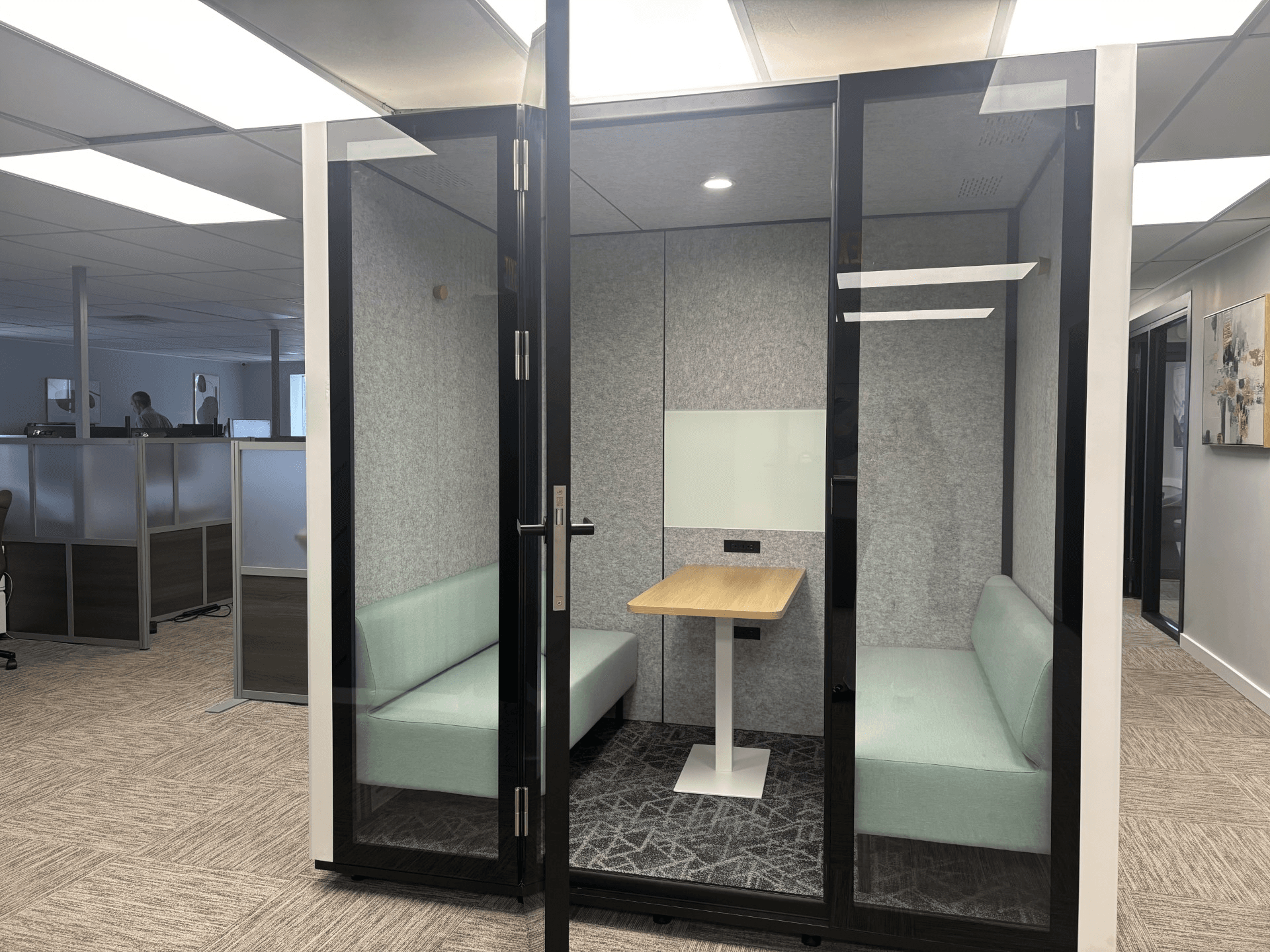
A smart phone booth should make a particular activity easier to carry out and manage. Start with that activity: a solo call, a video interview, focused laptop work or a small discussion. Write down the expected number of occupants, equipment and practical needs before comparing screens, sensors or software.
Multifunctional does not mean suitable for every task. A small call booth does not become a recording studio, a meeting room or a wellness facility because those uses appear in a brochure. Ask for a demonstration of the actual model and configuration with the work you expect people to do.
Ask what the automation actually does
ROOM’s Phone Booth product page describes a motion sensor that activates fans and an LED light. This is a specific example of an automatic response. It does not, by itself, demonstrate calendar booking, individual identification or an access-control integration.
Framery’s FAQ describes adjustable lighting and ventilation in its smart pods, and an activation process through Framery Connect. These details belong to that manufacturer’s offering. They should not be transferred to another booth or presented as FLYDESK features.
For any candidate, ask what triggers the response, what the user can adjust and what happens when the device or connection is unavailable. Distinguish included functions, optional equipment and services that need a separate account or agreement. A feature name is less useful than a clear demonstration of its behaviour.
Check the physical setup for each intended use
Try the booth with the equipment the team uses. Can the participant position a laptop and camera comfortably, use the controls and charge the required devices? Can another person join where the model is designed for that? Check the entrance and interior arrangements against the needs of actual users with the supplier and your facilities team.
For a video call, inspect the camera view, lighting and sound from the remote participant’s side. For recording, test the microphone and listen to the result rather than assuming that an enclosed space is a studio. For sensitive conversations, ask for the model’s acoustic evidence and a suitable site assessment; a photograph cannot establish confidentiality.
Our guide to preparing a pod installation covers delivery and site preparation separately. A useful interior still needs an appropriate place in the office.
Separate occupancy, reservation and access
A detected presence, a calendar reservation and permission to enter answer different questions. A booking may exist while the booth is empty. Someone may enter without a booking. An occupancy signal alone does not explain who is there, what they are doing or whether a meeting achieved its purpose.
Ask the supplier to show the relationship between these functions in the exact proposed setup. If information moves into another system, identify the connection, the information shared and who manages it. Have the appropriate team review data access and retention arrangements before enabling a connected service.
Three functions to verify separately
- Occupancy
What does the sensor detect, and how is the signal used?
- Reservation
Who holds the time slot, and what happens if it is unused?
- Access
Who may enter, and which system actually controls that permission?
Demonstrate a complete user visit
Use a simple test scenario: a person finds the booth, enters, starts the intended activity, adjusts the available controls and leaves. Observe whether the next user can understand its status. If a booking feature is part of the proposed configuration, include booking, cancellation and the handling of an unused reservation in the demonstration.
Then ask how the operator handles an unavailable device or service. Who receives the report? Can users understand what still works? Which steps require supplier assistance? Record the answers and any unresolved dependency before choosing the configuration. This is a suggested acceptance exercise, not a certification test.
Assign an owner for ongoing operation
List the people responsible for cleaning, physical maintenance, settings, account administration and supplier support. Confirm the relevant instructions, service arrangements and replacement process for the purchased model. Do not assume the team maintaining office furniture also administers every connected account.
When assessing use, distinguish an unavailable booth, a poor location and a setup that does not suit the intended task. A reservation count alone cannot show which explanation applies. Combine the information you are authorised to use with practical feedback from users, and agree what change to try next.
Connect the choice to your workplace plan
Use the FLYDESK pods page to discuss the proposed space and configuration. For organising planned office presence and desks, explore the FLYDESK application and desk booking. Confirm the specific resource and workflow in a demonstration before assuming a booth can be managed in the same way.
A connected booth needs a verified fit between its physical equipment, its own software and your organisation’s processes. This guide does not assert a FLYDESK integration with ROOM or Framery, sensor telemetry, automatic temperature control or electronic door access. Choose those functions only where the supplier and your team can demonstrate the required setup.